iDONATEpro Anedot Webhook Integration
Pull Donations & Contacts Into any of your Campaigns/Clients from Anedot.
To Set Up:
You will need to be Signed into your Anedot account and iDONATEpro.
All you need to get started and set it up is go to Data > Integrations and click New Integration.
Step by Step Instructions below and In App.
 Data > Integrations
Need Help?
Please pick a time: iDONATEpro Technical Support Calendar
(Includes Screen Share and a Conference Line)
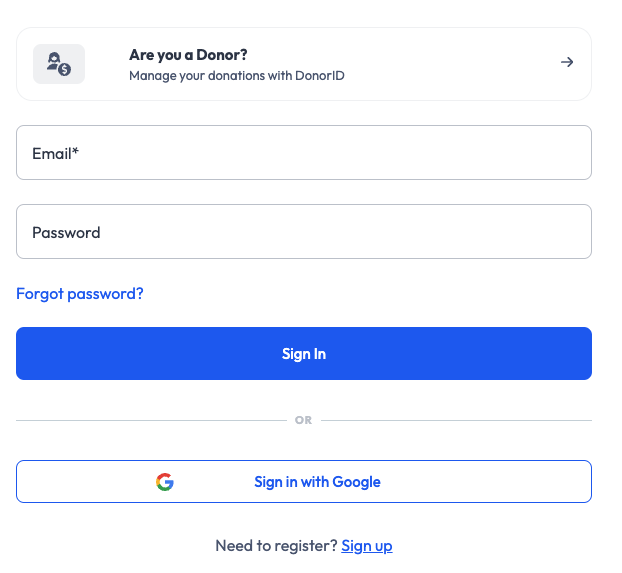
1.) Login to Anedot Account
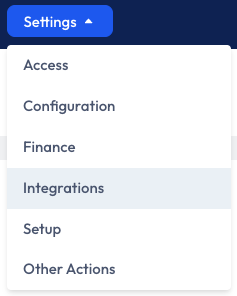
2.) Click "Settings" and then "Integrations"
3.) Click "New Connection"

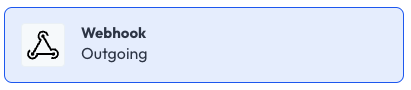
4.) Select Webhook
5.) Select "All Action Page(s)" to transfer into iDONATEpro and type a name for Integration, for example "iDONATEpro"
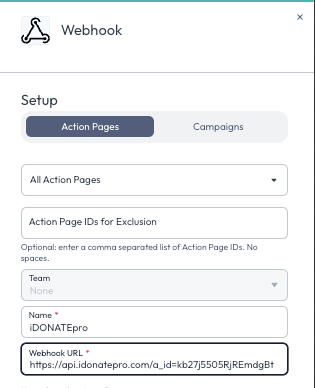
6.) Click "Copy Webhook URL" button found below or highlight and copy the URL provided below and paste into webhook URL field in Anedot
https://api.idonatepro.com?a_id=[XXXXXXXXXXXXXXXXXXXXXX]
7.) Check all boxes to transfer everything into iDONATEpro
8.) Click "Save"

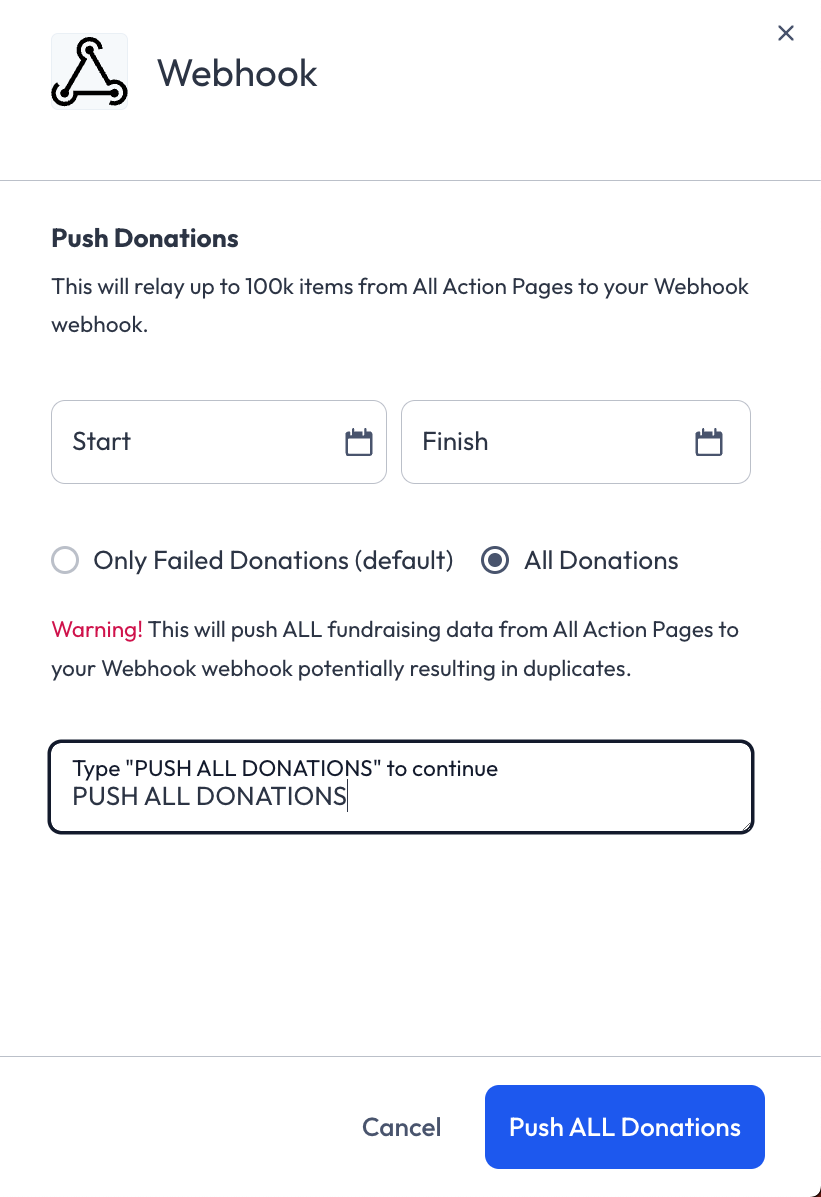
9.) From Integrations select "Actions" and click "Push Unsent"

10.) Select "All Donations" and type in "PUSH ALL DONATIONS" then click "Push ALL Donations" button
11.) Click Check Integration
12.) Once Data is Received the Integration is Complete!
Anedot Settings
Different Events can be set to push from Anedot.
You can adjust the Settings of your Anedot account of what you would like to push.
Each Event will Create a Contact with Data that can be "Merged" or "De-Duped" to remove Duplicates
donation_completed
submission_created
commitment_created
donation_settled
donation_chargeback
conduit_candidate_charge_created
commitment_updated
commitment_failed_to_process
donation_partially_refunded
charge_refunded
donation_refunded
donation_voided
Anedot Records & Donations
Anedot allows for Contacts without Donations to be Pulled
Anedot sends a Contact Record (excluding the Donation) then provides another Record for the Donation which includes the contact record. Sometime there are contacts that do not provide donations or donations where the contact is not provided.
- Record Count = both Contacts and Donations
- 1 Contact & 1 Donation = 2 Records
Pushing Past Donations
In Anedot - use the "Push Unsent" feature within the Integration Settings
Exporting Past Donations (Manual Data Retrieval)
For retrieving Past donations, you can export a CSV file from the Anedot dashboard.
 Anedot
- Go to the
EntriesorTransactionstab in your Anedot account. - Click
Exportin the top-right corner. - Choose the
CSV Formatexport type. This format includes all data collected per transaction, including donor details, payment details, and custom fields. - (Optional) Filter by donation date to specify the range of past donations you need.
- Click
Export. The file will be available for download in theDownloadstab.