Use Find > Groups to run Cross Comparisons
First build Groups of Contacts to Cross Compare
Then Run Finds to Cross-Compare Contacts in the Groups
Examples:
- Find Contacts who gave to "Campaign A" who have not given to "Campaign B."
- Find Contacts who gave Last Cycle who have not given This Cycle.
Find Groups (Contacts linked to Groups)
Groups Overview
- Groups are Lists / Tagging / Flagging of Contacts in iDONATEpro
- Contacts can be linked to an Unlimited number of Groups
Include & Exclude Groups
- Groups allow you to Cross-Compare and Target Contacts
- Similar to how you can do V-Lookups or Pivot Tables in Spreadsheets, you can use Groups and Cross-Compare them to narrow in you Targeting and Categorization
Example: Find Contacts
Include: Top Prospects Group, Lobbyists Group, Bundlers Group
Exclude: Do Not Contact Group, Bad Table Manners Group
Operators
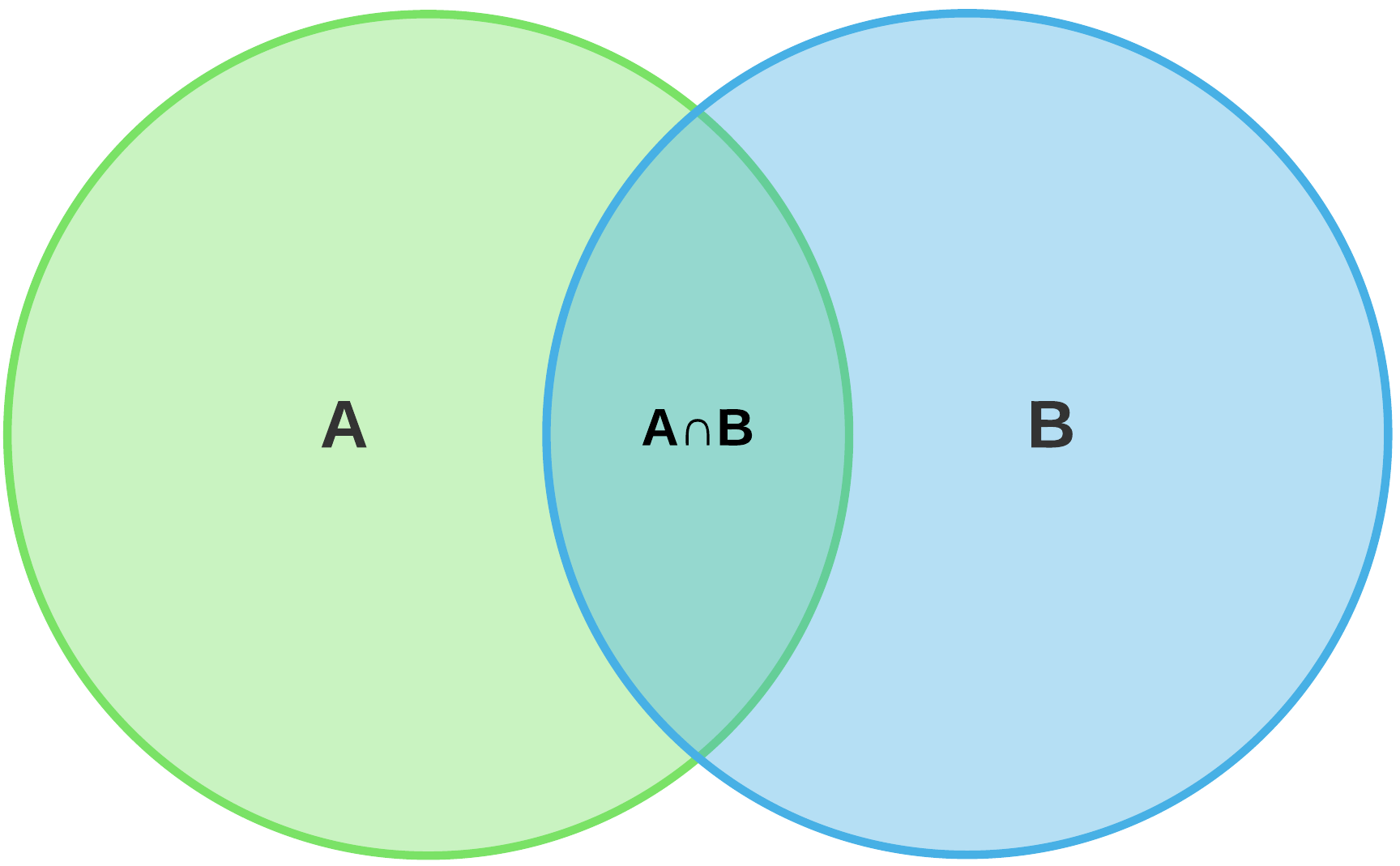
Is In All [AND] = Overlap
- If More than 1 Group Selected, this will Find the Overlap of the Groups
(AnB below)
Is In Any [OR] = All Groups Selected
- If More than 1 Group Selected, this will Find Contacts in All of the Groups
(A + B below)
Group Notes: Finds for Content in the Group Notes (Specific to the Group)
A. Find for Contacts who have Given to Both
"Campaign A" and "Campaign B"
a) Find 1: Find for Contacts who Gave to Campaign A
1.) Go to Find Section
2) Find > Financials
- Choose: Campaign A (Active / Inactive)
- Donation Criteria (Donation Account, $Line Item, $Totals, etc.)
3) Run Find
4) Find Results - Review
5) Find Results - Add All to Group > New Group or Existing Group: "Campaign B Donors"
b) Find 2: Find for Contacts who Gave to Campaign B
1.) Go to Find Section
2) Find > Financials
- Choose: Campaign B (Active / Inactive)
- Donation Criteria (Donation Account, $Line Item, $Totals, etc.)
3) Run Find
4) Find Results - Review
5) Find Results - Add All to Group > New Group or Existing Group: "Campaign B Donors"
c) Find Contacts in both Groups: "Campaign A Donors" "Campaign B Donors"
1.) Go to Find Section
2) Find > Groups: Include (Select both Groups)
- "Campaign A Donors"
- "Campaign B Donors"
3) Run Find
4) Find Results - Review
5) Find Results - Add All to Group > New Group or Existing Group: "Campaign A and B Donors"